

Google Business Profile for Small Businesses: 7 Steps
Nov 24, 2026















































































Google Business Profile for Small Businesses: 7 Steps to Get More Customers

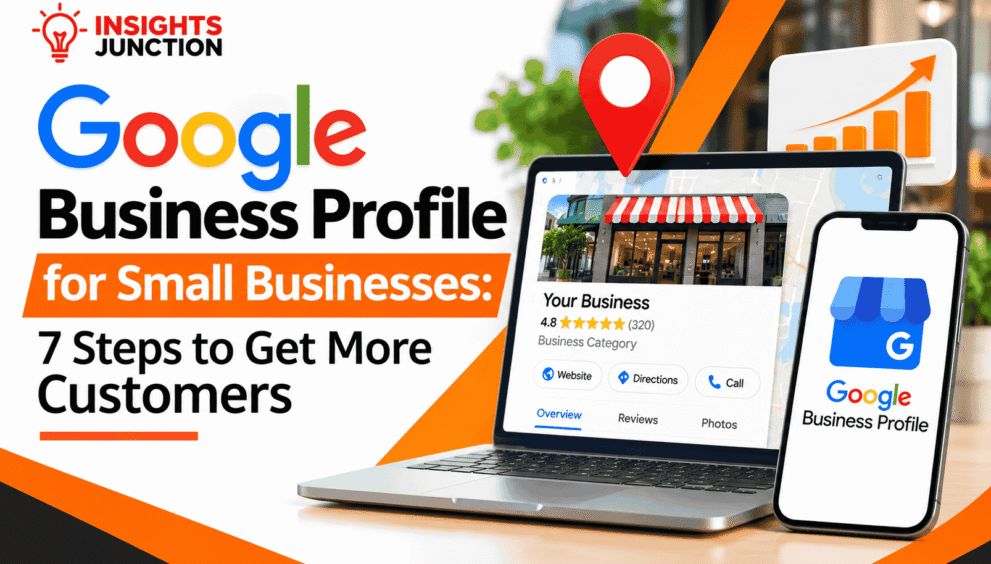
A Google Business Profile brings customers when it answers three questions in about ten seconds: are you open, are you real, and are you any good. Most small business profiles answer none of them well. The hours are wrong, the photos are stock, and the last review is from two years ago. Then the owner wonders why the phone stays quiet.
The profile is free, and it appears prominently in local search results. When someone searches for “plumber near me” or “bakery open now”, Google may display a map featuring three local businesses before showing other search results. These businesses have an opportunity to attract more calls and customers. This article explains seven practical steps to help your small business improve its visibility and attract more local customers.
How Google picks the three businesses on the map
Google says local results rest mainly on three factors: relevance, distance and prominence. Relevance is how well your profile matches the search. Distance is how close you are to the person searching. Prominence is how well known your business is, and Google counts links from other websites and the number of reviews you have.
You cannot change distance. A bakery two streets away will always beat one across town for a searcher standing nearby. What you can change is relevance and prominence, and that is where all seven steps below do their work.
One thing to know before you start: Google says there is no way to request or pay for a better local ranking. Anyone selling you a shortcut to the top of Maps is selling something Google does not offer.
The ranking side is worth understanding on its own, so I wrote a longer guide to how to rank in local search on Nexvolu.
Step 1: Fill in Every Field on Your Google Business Profile
Start by claiming your Google Business Profile and verifying your business. Until Google confirms that you are authorized to represent it, the listing is not fully under your control, and others can still suggest edits to it.
Then, complete all the available fields. Google says businesses with complete and accurate information are more likely to appear in local search results. Incorrect opening hours or an outdated phone number can cause your profile to miss relevant searches.
Add your business name, address, phone number, website, opening hours, category, services, description, and attributes. Treat every blank field as a customer you could be turning away.
Keep your business name, address, and phone number exactly the same across your Google Business Profile, website, and all online directories. Use one consistent business name, one address format, and one phone number. Google compares this information across the web, and inconsistencies can make your business details appear less reliable.
Also, update your special business hours before holidays. If a customer visits your business because your profile shows it as open, only to find the doors closed, they may not return and could even leave a negative review about the experience.
Step 2: Explain What Your Business Does Through Categories and Services
The primary category is the most important choice on your profile. Select the category that best describes your business rather than trying to include everything it offers. For example, a dental practice should choose “Dentist”, while teeth whitening should be listed as a service. Google allows up to nine additional categories, so use them to cover other relevant activities, but only include services your business actually provides.
Your business description can contain up to 750 characters. Use simple, clear language to explain what your business does, who it serves, which areas it covers, and what makes it different. Write for people reading on their phones rather than trying to optimize every sentence for search engines.
List each service with a short, clear description and a price range where appropriate. Adding services helps Google understand what your business offers and can make your profile more relevant to specific searches. For example, listing “emergency drain repair” provides more context than simply mentioning “plumber”.
Finally, avoid adding extra keywords to your business name. Google considers this a violation of its guidelines, and it can put your profile at risk of suspension.
Step 3: Add Real Photos to Your Profile and Keep Updating Them
Photos are where many small business profiles fall short. Stock photos of smiling strangers do not tell searchers anything, and people have learned to distrust them. Real photos of your storefront, business space, team, and completed work do the opposite. They help prove that your business is real.
Google recommends images of at least 720 × 720 pixels, in JPG or PNG format, and under 5 MB. This is a basic requirement that even a phone camera can meet.
Upload a new photo every couple of weeks. A profile that regularly gains photos looks active, while one that has not changed in a year may appear closed, even when the business is still operating.
While updating your profile, select the attributes that apply to your business, such as wheelchair access, parking, Wi-Fi, and accepted payment methods. These attributes can appear in filtered searches and answer questions customers might otherwise need to ask.
Step 4: Ask Every Customer for a Review and Respond to All Feedback
Customer reviews serve two important purposes. They help improve your business’s prominence, which is one of Google’s three local ranking factors, and influence whether potential customers choose your business. For example, someone comparing two plumbing services is more likely to trust the business with 60 recent reviews than one with just six outdated reviews. Google also considers review signals when evaluating local businesses.
Getting more reviews does not require a complicated strategy. Simply ask every customer to leave feedback, not only those who had a positive experience. Google provides a direct review link through your Google Business Profile dashboard. Share this link within one or two days after completing a service, while the customer’s experience is still fresh. You can send it through SMS, email, or WhatsApp.
Businesses that consistently receive reviews are usually the ones that regularly request them. If you send a review request after a month, customers may forget about their experience or ignore the message. Asking shortly after completing the service increases the chances of receiving a response.
Responding to every review is equally important. Google explains that responding to customer feedback shows that you value their opinions and helps your business stand out. Try to reply within three days. Thank satisfied customers by name and refer to something specific about their experience. This makes your response feel genuine and personal rather than automated.
Negative reviews also deserve a response, but they require extra attention. Start by thanking the customer for sharing their experience. Acknowledge the issue clearly without becoming defensive or arguing. Explain what went wrong, mention the steps you have taken or plan to take to resolve it, and invite the customer to discuss the matter privately. Remember, your response is not just for the person who left the review; future customers will read it too. A professional and thoughtful reply can build more trust than having a perfect rating.
There are two practices you should always avoid. Never offer discounts, gifts, or free services in exchange for reviews, and never purchase fake reviews. Google can remove reviews that violate its policies and may even restrict your Business Profile. Building genuine reviews takes time, but a consistent collection of authentic customer feedback is far more valuable than a large number of fake reviews. Fake reviews can disappear, while profile restrictions can have a lasting impact on your business.
Step 5: Publish a New Post Every Week
Google Business Profile posts are short updates that appear directly on your business profile and may also show up in local search results. You can use them to share special offers, introduce new services, announce seasonal promotions, or showcase completed projects with real photos. Think of these posts as a digital notice board that keeps customers informed about what’s happening in your business.
Most standard posts remain visible for seven days, making one post per week a practical publishing schedule. Keep your content simple and useful. Aim for around 150 to 300 words, include a genuine photo related to your business, and add a clear call-to-action button that encourages visitors to take the next step.
If you are promoting a limited-time discount or seasonal deal, use the Offer post format. It allows you to set a specific start and end date, making it ideal for promotions with a fixed deadline.
Many small businesses rarely publish updates on their Google Business Profiles. This gives you an opportunity to stand out simply by posting consistently. Creating a weekly update takes only about ten minutes and helps keep your profile fresh, informative, and active for potential customers.
Step 6: Answer Customer Questions Before Someone Else Does
Every Google Business Profile includes a Questions & Answers section where people can ask questions about your business. However, anyone can also respond to those questions, including people who have never used your services. This is something many business owners often overlook.
Take the initiative and add common customer questions yourself. Think about the questions people frequently ask when they call or visit your business. For example: Do you accept walk-ins? Is parking available? Do you offer delivery? How much does the first consultation or visit cost? Add these questions to your profile and provide clear answers in two or three sentences.
Make it a habit to review this section whenever you check your customer reviews. An incorrect answer left unanswered can create confusion and damage customer trust, especially when it appears directly on your Google Business Profile. Providing accurate and helpful answers gives potential customers the information they need to make a decision.
A short, relevant, and accurate answer can build the same level of confidence as a positive customer review, and the best part is that it does not cost anything.
Step 7: Track Performance and Review Your Profile Every Month
Your Google Business Profile dashboard provides useful insights into how people interact with your business listing. You can see how many people viewed your profile, which search terms they used to find you, and how many called your business, requested directions, or visited your website. Review these metrics monthly rather than checking them every day. Daily figures can fluctuate unexpectedly, while monthly data gives you a clearer picture of whether your optimization efforts are delivering results.
You should also track website visits coming directly from your Google Business Profile. Add UTM parameters to your website link so that Google Analytics can identify this traffic separately. Make sure your UTM parameters are configured correctly to avoid common tracking mistakes. This helps you distinguish profile-generated visits from other organic search traffic and understand how effectively your listing drives website engagement.
Once a month, review the essential details of your profile, including your business name, opening hours, phone number, and primary category. Other people can suggest changes to your listing, and Google may sometimes apply these updates automatically. Without regular monitoring, incorrect information can remain visible for weeks. Check for unwanted edits, update outdated business hours, correct any inaccurate details, and compare your performance with the previous month. Once your profile is properly optimized, around 30 minutes of monthly maintenance should be sufficient.
Sources
- Google Business Profile Help, Tips to Improve Your Local Ranking on Google
- EMB-S, Google Business Profile: How to Optimize It
- SEO-DAY, Google Business Profile Optimization: Complete Guide 2025
- Innovative Momentum, Google Business Profile Optimization: Complete Guide for 2026